
Updating an Android application sounds simple, but it can become risky when the app is installed from an APK rather than a well-known app store. A new version may contain important bug fixes, performance improvements, security patches, or compatibility changes. At the same time, downloading an update from an unreliable source can expose a phone to modified or harmful files.
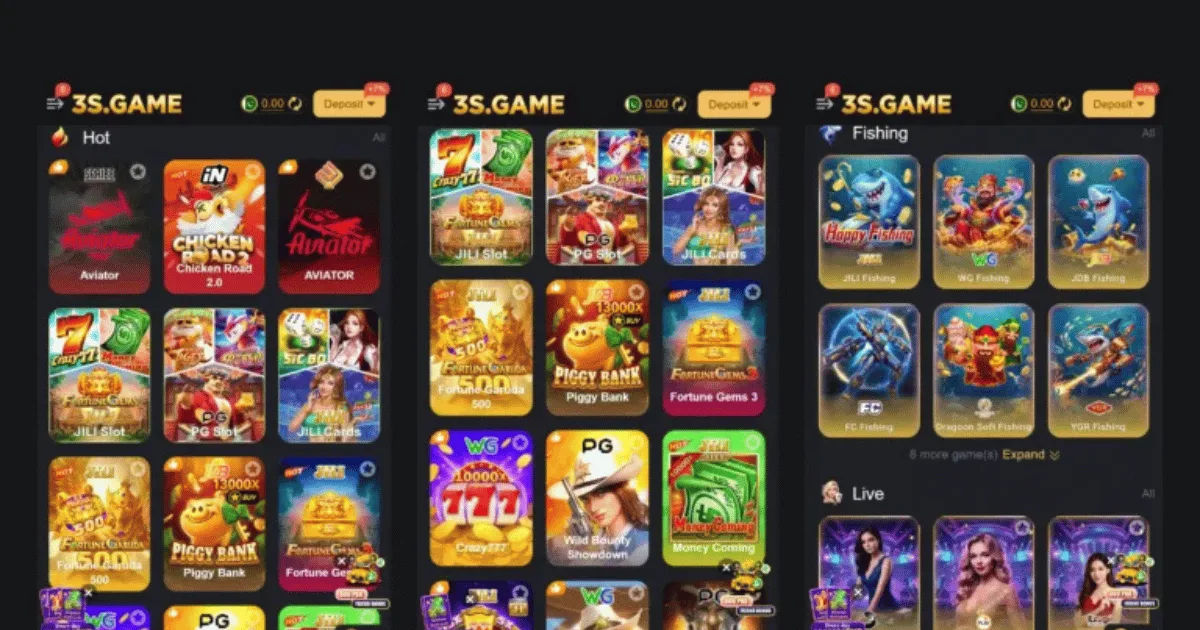
For users who have installed 3game apk, the safest approach is to treat every update as a security decision, not just a routine download. Before replacing the existing version, it is worth checking where the update comes from, whether the package is genuine, and whether it is compatible with the device.
The process does not have to be complicated. With a few sensible checks, you can reduce the chance of installing a damaged, fake, outdated, or modified APK. The following guide explains how to approach an update carefully and what to do if something goes wrong.
Why Safe Updating Matters
An APK is the installation package used by Android applications. When an application is distributed outside the Google Play Store, the user usually has to download and install the APK manually.
That extra step creates another security consideration. You are responsible for deciding whether the source is trustworthy and whether the downloaded file is actually the application you intended to install.
A legitimate 3game apk update should come from a source you can reasonably verify. A random website offering an "updated" APK may not provide the same file as the legitimate developer or service.
Some unofficial APK files can be repackaged. They might contain unwanted advertisements, tracking components, or malicious software. Others may simply be old versions renamed to appear new.
Updating safely therefore means verifying the update before installing it.
Check the Current App Version First
Before downloading anything, open the application and check its current version if the app provides that information.
You can often find version details inside Settings, About, Help, or Account sections. Android may also display application information under the phone's Apps settings.
Write down the current version number.
This small step helps you determine whether an update is actually necessary. If a website claims to offer a newer 3game apk, compare its version number with the one already installed.
Do not assume that a larger version number automatically means the file is legitimate. Version numbers can be copied or changed by people distributing unofficial packages.
The version should be considered alongside the download source and other signs of authenticity.
Find a Trustworthy Update Source
The source of an APK is one of the most important safety factors.
Ideally, use the application's official distribution channel. If the developer provides an official website or download page, use that rather than relying on search results, social media posts, file-sharing pages, or unknown APK directories.
Search carefully because fake download pages can look surprisingly convincing.
A page using the application name and logo does not prove that it is official. Check the domain name, developer information, contact details, and other signs that connect the website to the actual service.
If the official service provides an update notification inside the application, that can also be useful. However, do not automatically trust every pop-up that asks you to download an APK. Verify where the link leads before continuing.
Back Up Important Information
Before installing a new 3game apk, consider protecting information that matters to you.
If the application stores account information online, your data may remain available after an update. However, locally stored settings, downloads, or other files may sometimes be affected by an installation problem.
If the application provides its own backup or synchronization feature, use it when appropriate.
You should also make sure you know your login details before updating. An update normally should not remove your account, but problems can happen when an installation fails or an application is reinstalled instead of updated.
Having your account recovery information available can save considerable frustration.
Check Your Android Version
Compatibility is another important consideration.
A newer 3game apk may require a newer version of Android than the one currently installed on your phone. If your operating system is too old, the application might refuse to install or could behave incorrectly after updating.
Open your Android settings and check the operating system version.
Then compare it with the requirements stated by the official application source.
You should also check available storage. Updates sometimes require temporary space during installation, even when the final application is not dramatically larger.
If your phone is almost full, remove unnecessary files before starting the update.
Download the APK Carefully
When you are ready to download the 3game apk, use a stable and trusted internet connection.
Avoid downloading important application packages through suspicious advertisements or pop-ups. A button that says "Download Latest Version" is not automatically safe simply because it looks professional.
Pay attention to the actual download file.
An APK should normally have an APK file extension. Be cautious if a supposed application download arrives as an unexpected ZIP archive, executable file, or another format.
Never install a file simply because someone says it is an "exclusive update."
Scan the Downloaded File
Security software can provide another layer of protection.
Before opening the 3game apk, scan the downloaded file with a reputable mobile security application if your device supports this feature.
Google Play Protect can also help identify potentially harmful applications, although no security system should be treated as an absolute guarantee.
If a security tool warns you about the APK, stop the installation until you understand the warning.
Do not disable security protections simply because an installation guide tells you to do so.
That is an important warning sign. A legitimate update should not normally require you to weaken your phone's security just to install it.
Compare the Update With the Existing Installation
Android generally allows an APK to update an existing application when the package is compatible and properly signed.
If the update refuses to install because the signatures do not match, do not immediately uninstall the existing application.
A signature mismatch can mean that the new file was created by a different signing key. In practical terms, Android may be telling you that the update does not belong to the same application package.
This is one of the situations where caution is more useful than persistence.
Uninstalling the existing 3game apk just to force a questionable file to install can create additional problems, including loss of locally stored data.
Instead, return to the source and verify that you have the correct package.
Be Careful With Unknown Permissions
Permissions deserve attention after an update.
Android applications may request access to features such as storage, notifications, camera, microphone, location, or contacts.
Some permissions may be reasonable for an application's functions. Others may not make sense.
After installing a new 3game apk, review its permissions through Android's application settings.
If the new version suddenly requests access that seems unrelated to what the application does, investigate before granting permission.
Do not approve every request automatically.
The safest habit is to give an application only the permissions it genuinely needs.
Update Android Security Settings
Keeping Android itself updated is just as important as updating applications.
Your phone manufacturer may release operating system updates and security patches that address known vulnerabilities.
Before updating a manually installed 3game apk, check whether your Android device has pending system updates.
A modern application running on an outdated operating system may still encounter compatibility or security problems.
Keeping both the operating system and applications reasonably current creates a stronger overall security environment.
What If the Update Fails?
Sometimes an APK update simply does not install.
You might see messages such as "App not installed," "Package appears to be invalid," or an error involving an incompatible version.
Do not repeatedly download random versions until one works.
First, check your available storage and Android version.
Then verify that the new 3game apk is intended for your device architecture and operating system.
If the application is already installed, also confirm that the update comes from the same legitimate publisher and uses the appropriate signing credentials.
A failed update is often a compatibility or package problem rather than something that requires a complicated workaround.
What If the App Stops Working After Updating?
An update can occasionally introduce bugs.
If the application crashes immediately after installation, restart the phone first.
Then check whether another update is available from the official source.
You can also use Android's application settings to clear temporary cache data if appropriate. Avoid clearing application data unless you understand what it will remove.
If the previous version worked correctly and the new 3game apk causes problems, look for official information about the release rather than downloading an unrelated "fixed" APK from an unknown website.
Sometimes the safest solution is simply to wait for a verified maintenance release.
Avoid Modified APK Versions
One of the biggest risks associated with APK downloads is the modified version.
A modified APK may claim to offer additional features, unlocked functions, unlimited resources, or other advantages.
These claims can be tempting, but modifications also mean that the original application has been changed.
There is no reliable way to assume that a modified 3game apk is safe merely because other people recommend it online.
The modification could affect privacy, security, advertisements, account credentials, or application behavior.
For normal users, the safest choice is to use the original version distributed through a trustworthy channel.
Do Not Ignore Suspicious Behavior
Pay attention to what your phone does after an update.
Unexpected pop-ups, excessive battery usage, unusual data consumption, unexplained applications, browser redirects, or persistent advertisements can be warning signs.
One unusual event does not automatically prove that an APK is malicious. Android devices can behave strangely for many harmless reasons.
However, several unusual changes appearing immediately after installing a new 3game apk deserve investigation.
If you strongly suspect that an APK caused a security problem, disconnect from sensitive accounts where appropriate and consider removing the suspicious application. For important accounts, change passwords from a trusted device if you believe credentials may have been exposed.
Keep a Simple Update Routine
Safe updating becomes much easier when you follow the same routine every time.
First, check the installed version.
Next, verify the source of the update.
Then check the Android requirements and available storage.
Download the package carefully and scan it before installation.
After installing the 3game apk, open the application and test its main functions.
Finally, review permissions and watch for unusual behavior.
This routine takes only a few minutes, but it can prevent many avoidable problems.
Should You Update Immediately?
Not every update needs to be installed the moment you hear about it.
If the update comes from a verified official source and includes important security or compatibility fixes, installing it promptly can make sense.
If the only available download is from an unknown website, waiting is usually safer than rushing.
A few days of waiting for a verified release is generally better than installing a questionable package simply because it claims to be the newest version.
The same principle applies when a website uses aggressive language such as "install now or your account will stop working."
Pressure is not proof of authenticity.
Common Mistakes to Avoid
One common mistake is downloading the first APK that appears in a search engine.
Another is assuming that a familiar logo means the website is official.
Some users also disable Play Protect or other security features when an APK refuses to install. That can remove an important layer of protection without solving the underlying problem.
Another mistake is uninstalling the current application immediately when an update fails.
You should first investigate the package compatibility and source.
Finally, avoid keeping several APK copies from different websites on your phone. If you no longer need an installation file, removing it reduces confusion and prevents you from accidentally installing an older or questionable version later.
A Practical Safe-Update Checklist
Before updating 3game apk, confirm that the download comes from a trustworthy source.
Check the version number against the currently installed version.
Make sure your Android version meets the application's requirements.
Keep enough free storage available for the installation.
Back up important locally stored information when possible.
Scan the APK before opening it.
Do not disable security protections just to complete an installation.
Review permissions after the update.
Test the application before relying on it for important activity.
If something looks suspicious, stop and investigate instead of repeatedly trying different files.
Conclusion
Updating an APK safely is mainly about slowing down and checking the details before installing anything. The technical installation itself may take only a few moments, but verifying the source and compatibility can make a major difference to your device's security.
For anyone using 3game apk, the safest approach is to obtain updates from a trustworthy and verifiable source, check the version carefully, keep Android updated, maintain enough storage, and scan unfamiliar installation files before opening them.
It is also important to understand that not every APK advertised as "latest" is necessarily genuine. A higher version number, attractive download page, or positive comment does not guarantee that a package has not been modified.
If an update produces a signature mismatch, suspicious permissions, unexpected advertisements, crashes, or other unusual behavior, do not try to force the installation. Stop, verify the source, and look for an official solution.
A good update routine is simple: verify, download, scan, install, check, and monitor. That approach may take a little longer than clicking the first download button you see, but it gives you much better control over what reaches your phone.
Most importantly, never trade device security for convenience. When an APK update is genuine and compatible, the process should be reasonably straightforward. When something feels unusual, treating that warning seriously is usually the smartest decision.