
Using a barcode scanner has become a common way to quickly access product information, compare prices, check inventory, or open digital content. Many people rely on free scanning tools because they are convenient and easy to access.
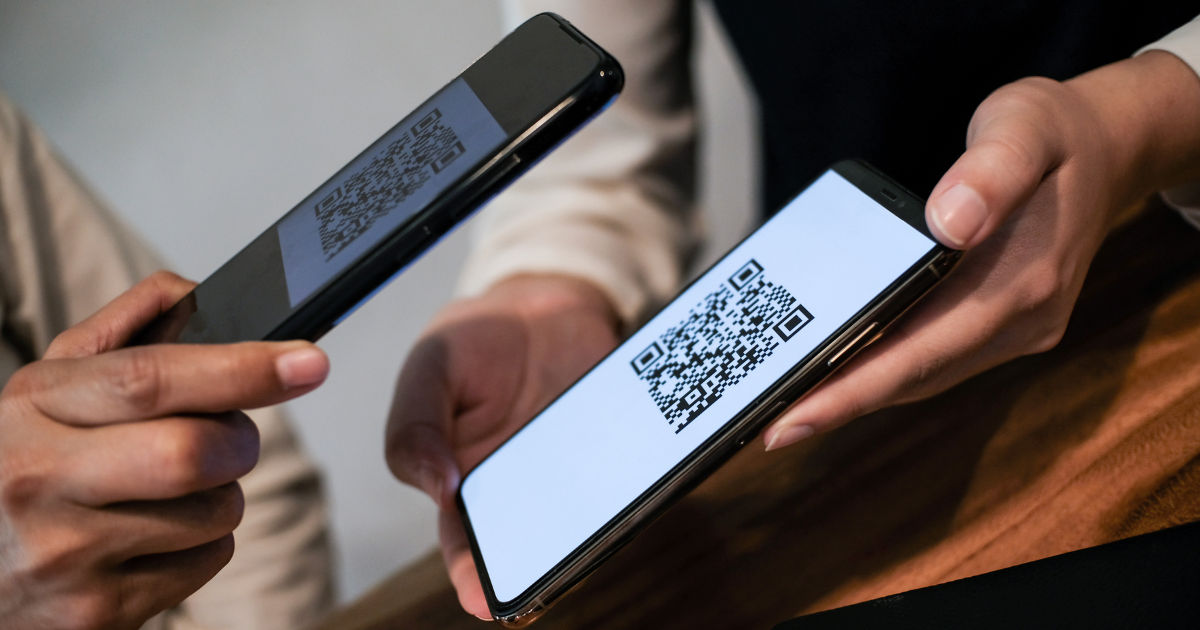
However, sometimes users experience problems where scan barcode free tools stop working, fail to recognize codes, or show unexpected errors.These issues can happen for many reasons, including camera problems, poor lighting, outdated apps, damaged barcodes, internet connection problems, or device compatibility issues.
Understanding the cause makes it much easier to fix the problem and get scanning working again.This guide explains the most common reasons a barcode scanner may fail and provides practical solutions that anyone can follow.
How Free Barcode Scanners Work
Before troubleshooting, it helps to understand what happens when you scan a barcode.
A barcode scanner uses your device’s camera to capture an image of the barcode. The scanning software then analyzes the pattern of lines, squares, or dots and converts that information into readable data.
Depending on the type of barcode, the scanner may need to connect to the internet to retrieve additional information. For example, a QR code might open a website, while a product barcode may search an online database.
A scan barcode free tool usually depends on three main components:
- Your device camera
- Scanning software or application
- Internet connection for additional information
If any of these parts have problems, scanning may fail.
Common Reasons Why Scan Barcode Free Is Not Working
There are several possible causes behind barcode scanning issues. Some problems are easy to fix, while others require changing device settings or replacing the scanning tool.
Poor Camera Quality or Camera Problems
One of the most common reasons barcode scanning fails is a problem with the camera.
A barcode scanner needs a clear image to identify the code. If your camera lens is dirty, scratched, or unable to focus properly, the scanner may not recognize the barcode.
How to Fix Camera Issues
Try these simple solutions:
- Clean your camera lens with a soft cloth.
- Make sure your camera can focus properly.
- Remove any protective cover blocking the lens.
- Restart your device.
- Test the camera using the normal camera app.
If the camera cannot take clear pictures, the barcode scanner will usually struggle as well.
Poor Lighting Conditions
Lighting plays an important role in successful barcode scanning.
If the barcode is too dark, has shadows, or reflects too much light, the scanner may not be able to read it correctly.
For example, scanning a glossy product package under bright sunlight can create reflections that hide parts of the barcode.
Improving Lighting for Better Scanning
To improve results:
- Move to a brighter area.
- Avoid direct reflections.
- Use your device flashlight if available.
- Keep the barcode evenly lit.
Good lighting allows the camera to capture the barcode pattern more accurately.
The Barcode Is Damaged or Unclear
Sometimes the problem is not your device or scanning software. The barcode itself may be damaged.
Barcodes can become unreadable because of:
- Scratches
- Faded printing
- Wrinkles
- Dirt
- Low-quality printing
Even a small damaged area can prevent the scanner from understanding the complete code.
Try Scanning Another Barcode
A simple test is to scan a different barcode. If another code works, the original barcode may be the issue.
Incorrect Distance Between Camera and Barcode
Many users hold their phone too close or too far away when scanning.
A barcode scanner needs enough space to capture the complete code. If the camera cannot see the entire barcode, it may fail.
Finding the Correct Distance
Try the following:
- Hold your phone about 10–20 centimeters away.
- Keep your hand steady.
- Wait a few seconds for automatic focusing.
- Move slowly closer or farther until the barcode becomes clear.
Avoid quickly moving the phone because the scanner needs time to process the image.
Outdated Scanner Application
If you are using a barcode scanning application, an outdated version may cause problems.
Developers regularly update apps to improve performance, fix bugs, and support newer operating systems.
An old scanner app may stop working properly after a device update.
Updating the Scanner Tool
Check your app store for updates.
Updating can fix issues related to:
- Camera access
- Security permissions
- Operating system compatibility
- Scanning accuracy
Keeping applications updated is one of the easiest ways to prevent technical problems.
Missing Camera Permissions
Barcode scanners need permission to use your camera.
If permission was denied during installation or removed later, the scanner cannot function.
Checking Camera Permissions
On most smartphones:
- Open device settings.
- Go to applications.
- Select your barcode scanner.
- Check permissions.
- Allow camera access.
After enabling permissions, restart the application and try scanning again.
Internet Connection Problems
Some barcode scanners work offline, but many free tools require internet access.
If your connection is weak, the scanner may read the barcode but fail to display information.
Common connection problems include:
- Slow Wi-Fi
- Weak mobile data signal
- Network restrictions
- Temporary server issues
Testing Your Internet Connection
Open a website or another online application to confirm your connection works.
If other apps are also having problems, the issue may not be related to the barcode scanner.
Browser Compatibility Issues
Some people use online barcode scanning websites instead of installing apps.
These tools depend on browser support for camera access. If your browser is outdated or blocks permissions, scanning may not work.
Improving Browser Performance
Try:
- Updating your browser.
- Allowing camera permissions.
- Clearing browser cache.
- Trying another browser.
A different browser can sometimes solve the problem immediately.
Device Compatibility Problems
Not every device supports every scanning feature.
Older smartphones may have:
- Lower camera resolution
- Slower processing speed
- Older operating systems
These limitations can affect barcode recognition.
Check Device Requirements
Before using any scanning tool, check whether your device supports it.
A newer device usually provides faster and more reliable scanning performance.
Too Much Background Activity
Sometimes other apps running in the background affect performance.
If your phone has limited memory, the scanner may freeze or respond slowly.
Improving Device Performance
Try:
- Closing unnecessary apps.
- Restarting your phone.
- Freeing storage space.
- Updating the operating system.
A cleaner device environment can improve scanning speed.
Problems With QR Codes vs Traditional Barcodes
Many people confuse QR codes with traditional barcodes.
Traditional barcodes usually contain vertical lines and store limited information. QR codes use a square pattern and can store much more data.
A scanner designed for one type may not always work correctly with another.
Choosing the Right Scanner
Make sure your tool supports the barcode type you are trying to scan.
Common barcode formats include:
- UPC
- EAN
- Code 128
- QR codes
- Data Matrix
Using the correct scanner improves accuracy.
Clearing App Cache and Data
Temporary files stored by applications can sometimes cause problems.
A corrupted cache may prevent the scanner from operating normally.
How to Clear Cache
On Android devices:
- Open Settings.
- Select Apps.
- Choose your barcode scanner.
- Select Storage.
- Clear cache.
After clearing the cache, reopen the application.
Restarting the Device
A simple restart can solve many temporary software problems.
Phones sometimes experience small glitches involving:
- Camera services
- Memory usage
- Application processes
Restarting refreshes these systems and may restore normal scanning.
Reinstalling the Barcode Scanner
If nothing else works, reinstalling the scanner may help.
Delete the application, restart your device, and install it again.
This removes damaged files and gives the application a fresh setup.
Security and Privacy Restrictions
Some devices have privacy settings that limit camera access.
Security software, workplace restrictions, or system settings may block scanning tools.
Check whether another security application is preventing camera access.
When to Use Another Scanner
Sometimes the easiest solution is switching to another tool.
A reliable barcode scanner should:
- Have good reviews
- Receive regular updates
- Support your device
- Request reasonable permissions
Not every free scanner provides the same performance.
Tips for Better Barcode Scanning Results
To avoid future problems, follow these simple practices:
- Keep your camera lens clean.
- Use good lighting.
- Hold the barcode steady.
- Keep apps updated.
- Maintain enough storage space.
- Use a supported device.
- Avoid scanning damaged codes.
These small habits can make scanning faster and more reliable.
Frequently Asked Questions
Why does my barcode scanner open but not scan?
This usually happens because the camera cannot capture a clear image. Check lighting, camera focus, and permissions.
Can a damaged barcode still be scanned?
Sometimes yes, but severe damage can make the barcode impossible to read.
Does barcode scanning require internet?
Some scanners work offline, while others need internet access to retrieve additional information.
Why is my camera working but the scanner is not?
The issue may be related to app permissions, outdated software, or compatibility problems.
Are free barcode scanners safe to use?
Many free scanners are safe, but users should check reviews and permissions before installing any application.
Conclusion
When a scan barcode free tool stops working, the problem is usually caused by a simple issue such as poor lighting, camera problems, missing permissions, outdated software, or internet connection failures. By checking each possible cause step by step, most barcode scanning problems can be solved quickly.
Start with basic fixes like cleaning the camera lens, improving lighting, checking permissions, and restarting your device. If those solutions do not work, updating or reinstalling the scanner application may solve deeper software problems.
Barcode scanning technology is designed to make daily tasks easier, but it depends on several components working together. Understanding how these tools operate helps you identify problems faster and choose the right solution.
With proper device settings, a clear barcode, and a reliable scanning tool, you can continue using barcode features smoothly without unnecessary frustration.